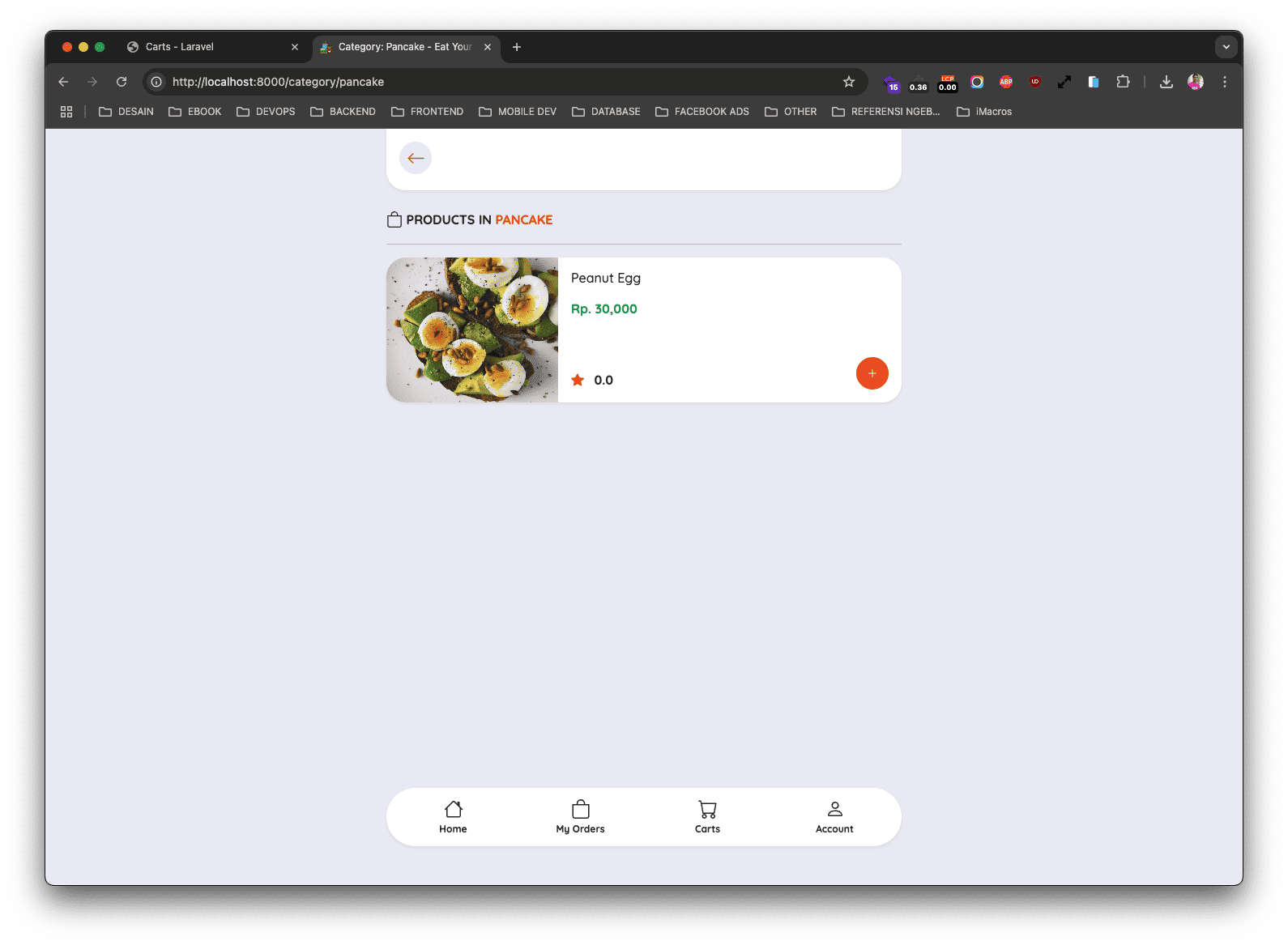
Pada component ini kita akan belajar menampilkan list data products berdasarkan category yang dibuka. Sehingga nanti ketika kita klik data category, maka yang akan ditampilkan adalah semua list data product yang terkait dengan category tersebut.
Langkah 1 - Membuat Component Category Show
Silahkan teman-teman jalankan perintah berikut ini di dalam terminal/CMD dan pastikan berada di dalam project Laravel-nya.
        go


     php artisan make:livewire Web/Category/Show
Jika perintah di atas berhasil dijalankan, maka kita akan mendapatkan 2 file baru, yaitu:
- Class Component:
app/Livewire/Web/Category/Show.php - View Component:
resources/views/livewire/web/category/show.blade.php
Langkah 2 - Membuat Route Category Show
Silahkan buka file routes/web.php, kemudian ubah semua kode-nya menjadi seperti berikut ini.
        php


     <?php

namespace App\Livewire;

use Illuminate\Support\Facades\Route;

//route register
Route::get('/register', Auth\Register::class)->name('register');

//route login
Route::get('/login', Auth\Login::class)->name('login');

//route group account
Route::middleware('auth:customer')->group(function () {

    Route::group(['prefix' => 'account'], function () {

        //route my order
        Route::get('/my-orders', Account\MyOrders\Index::class)->name('account.my-orders.index');

        //route my order show
        Route::get('/my-orders/{snap_token}', Account\MyOrders\Show::class)->name('account.my-orders.show');

        //route my profile
        Route::get('/my-profile', Account\MyProfile\Index::class)->name('account.my-profile');

        //route password
        Route::get('/password', Account\Password\Index::class)->name('account.password');

    });

});

//route home
Route::get('/', Web\Home\Index::class)->name('home');

//route products index
Route::get('/products', Web\Products\Index::class)->name('web.product.index');

//route category show
Route::get('/category/{slug}', Web\Category\Show::class)->name('web.category.show');
Dari perubahan kode di atas, kita menambahkan route baru untuk halaman category show dengan memberikan path URL /category/{slug}.
Langkah 3 - Get Data Category di Class Component
Silahkan teman-teman buke file app/Livewire/Web/Category/Show.php, kemudian ubah semua kode-nya menjadi seperti berikut ini.
        php


     <?php

namespace App\Livewire\Web\Category;

use Livewire\Component;
use App\Models\Category;

class Show extends Component
{
    /**
     * slug
     *
     * @var mixed
     */
    public $slug;

    /**
     * mount
     *
     * @param  mixed $slug
     * @return void
     */
    public function mount($slug)
    {
        $this->slug = $slug;
    }

    public function render()
    {
        //get category
        $category = Category::query()
            ->with('products')
            ->where('slug', $this->slug)
            ->firstOrFail();

        return view('livewire.web.category.show', compact('category'));
    }
}
Dari perubahan kode di atas, pertama kita import Model Category.
        perl


     use App\Models\Category;
Kemudian kita buat public properti.
        php


     public $slug;
Selanjutnya, kita buat method mount yang isi di dalamnya adalah meng-assign slug yang didapatkan dari URL ke dalam properti $slug.
        php


     public function mount($slug)
{
    $this->slug = $slug;
}
Di dalam method render kita melakukan get data category menggunakan Model berdasarkan data slug yang didapatkan dari URL browser, kemudian kita juga memanggil relasi products menggunakan method with.
        php


     //get category
$category = Category::query()
    ->with('products')
    ->where('slug', $this->slug)
    ->firstOrFail();
Setelah itu kita kirimkan data di atas ke dalam view component menggunakan compact.
        kotlin


     return view('livewire.web.category.show', compact('category'));
Langkah 4 - Menampilkan Data Products By Category
Sekarang kita tinggal menampilkan data list data products yang terkait dengan data category di dalam view component.
Silahkan buka file resources/views/livewire/web/category/show.blade.php, kemudian ubah semua kode-nya menjadi seperti berikut ini.
        typescript


     @section('title')
Category:  {{ $category->name }} - Eat Your Favorite Foods
@stop

@section('keywords')
Food Store, Eat Your Favorite Foods
@stop

@section('description')
Food Store - Eat Your Favorite Foods
@stop

@section('image')
{{ asset('/storage/' . $category->image) }}
@stop

<div class="container" style="margin-bottom: 150px">
    <div class="row justify-content-center">
        <div class="col-md-6">
            <!-- Judul dan Navigasi -->
            <div class="bg-white rounded-bottom-custom shadow-sm p-3 sticky-top mb-4">
                <div class="d-flex justify-content-start">

                    <x-buttons.back />

                </div>
            </div>

            <div class="d-flex justify-content-between">
                <div>
                    <span class="fs-6 fw-bold">
                        <svg xmlns="http://www.w3.org/2000/svg" width="20" height="20" fill="currentColor" class="bi bi-bag mb-1" viewBox="0 0 16 16">
                            <path d="M8 1a2.5 2.5 0 0 1 2.5 2.5V4h-5v-.5A2.5 2.5 0 0 1 8 1m3.5 3v-.5a3.5 3.5 0 1 0-7 0V4H1v10a2 2 0 0 0 2 2h10a2 2 0 0 0 2-2V4zM2 5h12v9a1 1 0 0 1-1 1H3a1 1 0 0 1-1-1z" />
                        </svg>
                        PRODUCTS IN <span class="text-orange">{{ strtoupper($category->name) }}</span>
                    </span>
                </div>
            </div>
            <hr />

            <div class="row">
                <div class="col-12 col-md-12 mb-2">
                    @foreach ($category->products()->latest()->get() as $product)
                        <x-cards.product :product="$product" />
                    @endforeach
                </div>
            </div>

        </div>
    </div>
</div>
Di atas, kita mengambil data category dari dalam relasi products yang ada di dalam category, kemudian kita looping (perulangan) menggunakan directive @foreach.
        less


     @foreach ($category->products()->latest()->get() as $product)

	//...

@endforeach
Kemudian isinya kita panggil component card product dan kita tambahkan props :product yang mana berisi object data product hasil perulangan.
        bash


     <x-cards.product :product="$product" />
Langkah 5 - Uji Coba Menampilkan Products By Category
Silahkan teman-teman klik salah satu category yang ada pada halaman home, jika berhasil maka kurang lebih hasilnya seperti berikut ini.