Setelah berhasil melakukan update data profile, maka sekarang kita akan lanjutkan belajar membuat component livewire untuk update password.
Langkah 1 - Membuat Component Password
Silahkan teman-teman jalankan perintah berikut ini di dalam terminal/CMD dan pastikan berada di dalam project Laravel-nya.
        go


     php artisan make:livewire Account/Password/Index
Jika perintah di atas berhasil dijalankan, maka kita akan mendapatkan 2 file baru, yaitu:
- Class Component:
app/Livewire/Account/Password/Index.php - View Component:
resources/views/livewire/account/password/index.blade.php
Langkah 2 - Membuat Route Update Password
Silahkan buka file routes/web.php, kemudian ubah semua kode-nya menjadi seperti berikut ini.
        php


     <?php

namespace App\Livewire;

use Illuminate\Support\Facades\Route;

//route register
Route::get('/register', Auth\Register::class)->name('register');

//route login
Route::get('/login', Auth\Login::class)->name('login');

//route group account
Route::middleware('auth:customer')->group(function () {

    Route::group(['prefix' => 'account'], function () {

        //route my order
        Route::get('/my-orders', Account\MyOrders\Index::class)->name('account.my-orders.index');

        //route my order show
        Route::get('/my-orders/{snap_token}', Account\MyOrders\Show::class)->name('account.my-orders.show');

        //route my profile
        Route::get('/my-profile', Account\MyProfile\Index::class)->name('account.my-profile');

        //route password
        Route::get('/password', Account\Password\Index::class)->name('account.password');

    });

});
Di atas, kita menambahkan route baru untuk menampilkan halaman ubah password.
        css


     Route::get('/password', Account\Password\Index::class)->name('account.password');
Langkah 3 - Membuat Fungsi Update Password
Silahkan buka file app/Livewire/Account/Password/Index.php, kemudian ubah semua kode-nya menjadi seperti berikut ini.
        php


     <?php

namespace App\Livewire\Account\Password;

use Livewire\Component;
use App\Models\Customer;

class Index extends Component
{
    public $password;
    public $password_confirmation;

    /**
     * rules
     *
     * @return void
     */
    public function rules()
    {
        return [
            'password'  => 'required|confirmed',
        ];
    }

    /**
     * update
     *
     * @return void
     */
    public function update()
    {
        // Validasi input
        $this->validate();

        //update
        $customer = Customer::where('id', auth()->guard('customer')->user()->id)->first();
        $customer->update([
            'password'  => bcrypt($this->password)
        ]);

        // session flash
        session()->flash('success', 'Update Password Berhasil');

        // redirect to the desired page
        return $this->redirect('/account/password', navigate: true);
    }

    public function render()
    {
        return view('livewire.account.password.index');
    }
}
Dari perubahan kode di atas, pertama kita import Model Customer.
        perl


     use App\Models\Customer;
Kemudian kita membuat 2 public properti.
        php


     public $password;
public $password_confirmation;
Setelah itu, kita buat method untuk mendefinisikan validasi, yaitu bernama rules.
        csharp


     public function rules()
{
    return [
        'password'  => 'required|confirmed',
    ];
}
Selanjutnya, kita membuat method lagi dengan nama update. Dimana method ini nanti akan dijalankan ketika form disubmit.
        csharp


     public function update()
{

	//...

}
Di dalam method di atas, pertama kita panggil validasinya.
        scss


     // Validasi input
$this->validate();
Jika data yang dikrimkan sudah sesuai dengan yang diharapkan, maka kita akan melakukan update password menggunakan Model.
        php


     //update
$customer = Customer::where('id', auth()->guard('customer')->user()->id)->first();
$customer->update([
	'password'  => bcrypt($this->password)
]);
Jika berhasil, maka kita akan buat session flash dengan status success dan kita redirect ulang ke halaman password.
        kotlin


     // session flash
session()->flash('success', 'Update Password Berhasil');

// redirect to the desired page
return $this->redirect('/account/password', navigate: true);
Langkah 4 - Membuat Form Update Password
Setelah berhasil membuat method di dalam class component untuk proses update password, maka kita tinggal lanjutkan membuat sebuah formnya di dalam view component.
Silahkan teman-teman buka file resources/views/livewire/account/password/index.blade.php, kemudian ubah semua kode-nya menjadi seperti berikut ini.
        javascript


     <div class="container">
    <div class="row justify-content-center mt-0" style="margin-bottom: 150px;">
        <div class="col-md-6">

            <x-menus.customer />

            <div class="card border-0 shadow-sm rounded">
                <div class="card-body p-4">
                    <h6>
                        <svg xmlns="http://www.w3.org/2000/svg" width="18" height="18" fill="currentColor" class="bi bi-key mb-1" viewBox="0 0 16 16">
                            <path d="M0 8a4 4 0 0 1 7.465-2H14a.5.5 0 0 1 .354.146l1.5 1.5a.5.5 0 0 1 0 .708l-1.5 1.5a.5.5 0 0 1-.708 0L13 9.207l-.646.647a.5.5 0 0 1-.708 0L11 9.207l-.646.647a.5.5 0 0 1-.708 0L9 9.207l-.646.647A.5.5 0 0 1 8 10h-.535A4 4 0 0 1 0 8m4-3a3 3 0 1 0 2.712 4.285A.5.5 0 0 1 7.163 9h.63l.853-.854a.5.5 0 0 1 .708 0l.646.647.646-.647a.5.5 0 0 1 .708 0l.646.647.646-.647a.5.5 0 0 1 .708 0l.646.647.793-.793-1-1h-6.63a.5.5 0 0 1-.451-.285A3 3 0 0 0 4 5" />
                            <path d="M4 8a1 1 0 1 1-2 0 1 1 0 0 1 2 0" />
                        </svg>
                        Update Password
                    </h6>
                    <hr />

                    <form wire:submit.prevent="update">

                        <div class="input-group mb-3">
                            <input type="password" wire:model="password" class="form-control rounded @error('password') is-invalid @enderror" value="{{ old('password') }}" placeholder="New Password">
                        </div>
                        @error('password')
                        <div class="alert alert-danger mt-2 rounded border-0">
                            {{ $message }}
                        </div>
                        @enderror

                        <div class="input-group mb-3">
                            <input type="password" wire:model="password_confirmation" class="form-control rounded" placeholder="Confirm Password">
                        </div>

                        <button class="btn btn-orange-2 rounded" type="submit">Update Password</button>

                    </form>

                </div>
            </div>

        </div>
    </div>
</div>
Dari perubahan kode di atas, pertama kita panggil component menu customer.
        xml


     <x-menus.customer />
Kemudian di dalam form untuk action-nya kita arahkan ke dalam method update yang ada di dalam class component menggunakan directive wire:submit.
        bash


     <form wire:submit.prevent="update">

	//...

</form>
Langkah 5 - Uji Coba Update Password
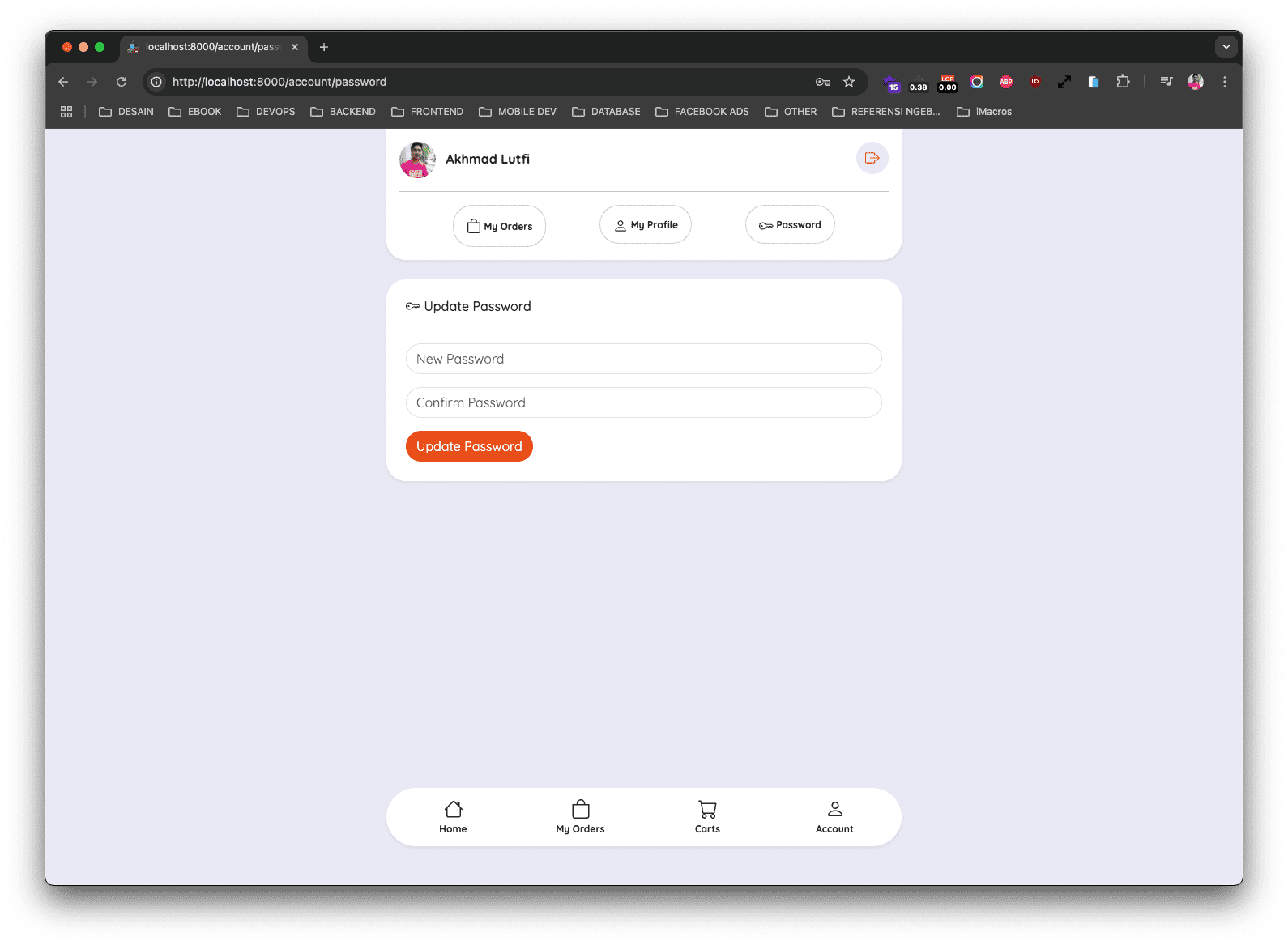
Sekarang silahkan klik menu Password, jika berhasil maka teman-teman akan mendapatkan hasil seperti berikut ini.
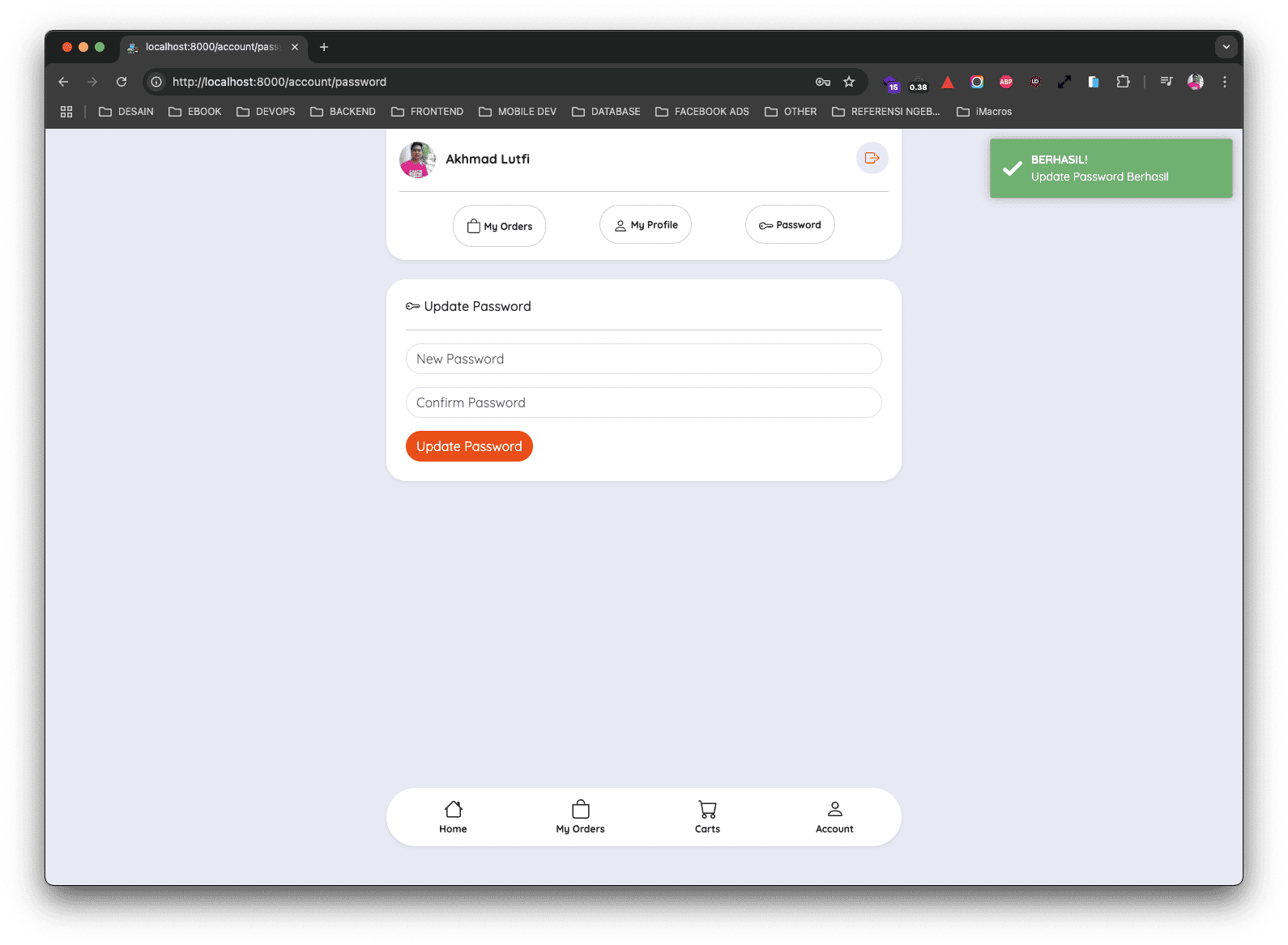
Silahkan masukkan password yang teman-teman inginkan, jika berhasil maka akan mendapatkan hasil seperti berikut ini.